Overview
Sync eligible Ramp bills to Financial Edge NXT (FENXT) as accounts payable invoices using the Ramp for FE (RFE) console.
Before syncing, review your Bill Pay configuration. If you use multiple Ramp accounts and FENXT databases, verify the selected connections and reauthorize them as needed.
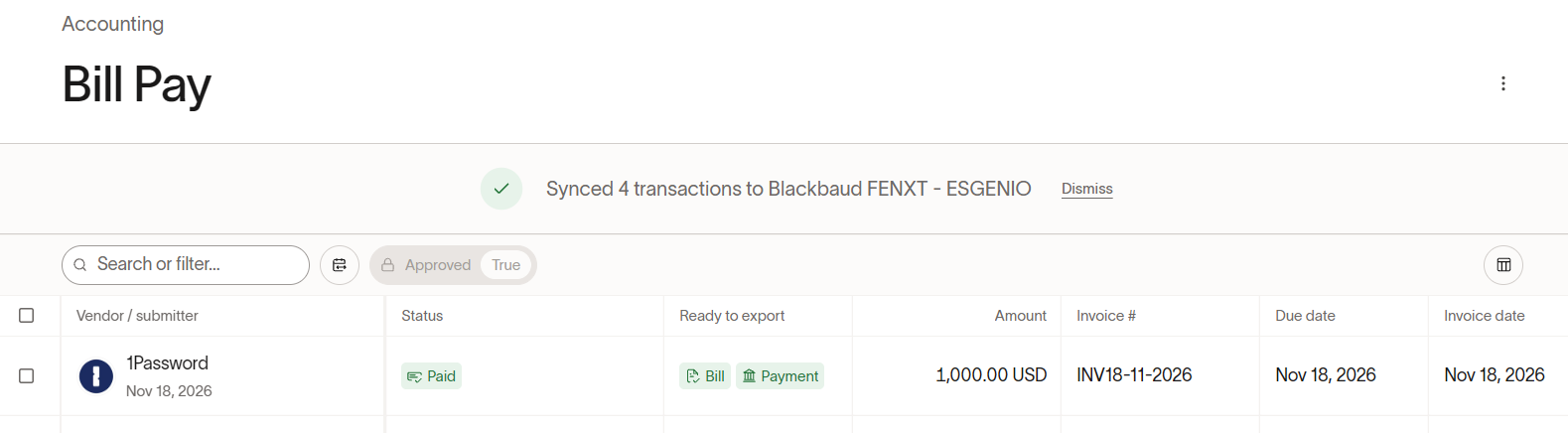
- In Ramp, open Accounting → Bill Pay and check the bills you want to sync. Complete any required coding and approvals.
- Ramp’s Export availability setting determines whether bills become available after creation or full approval. (We recommend keeping it full approval)
Pull Bills into Ramp for FE
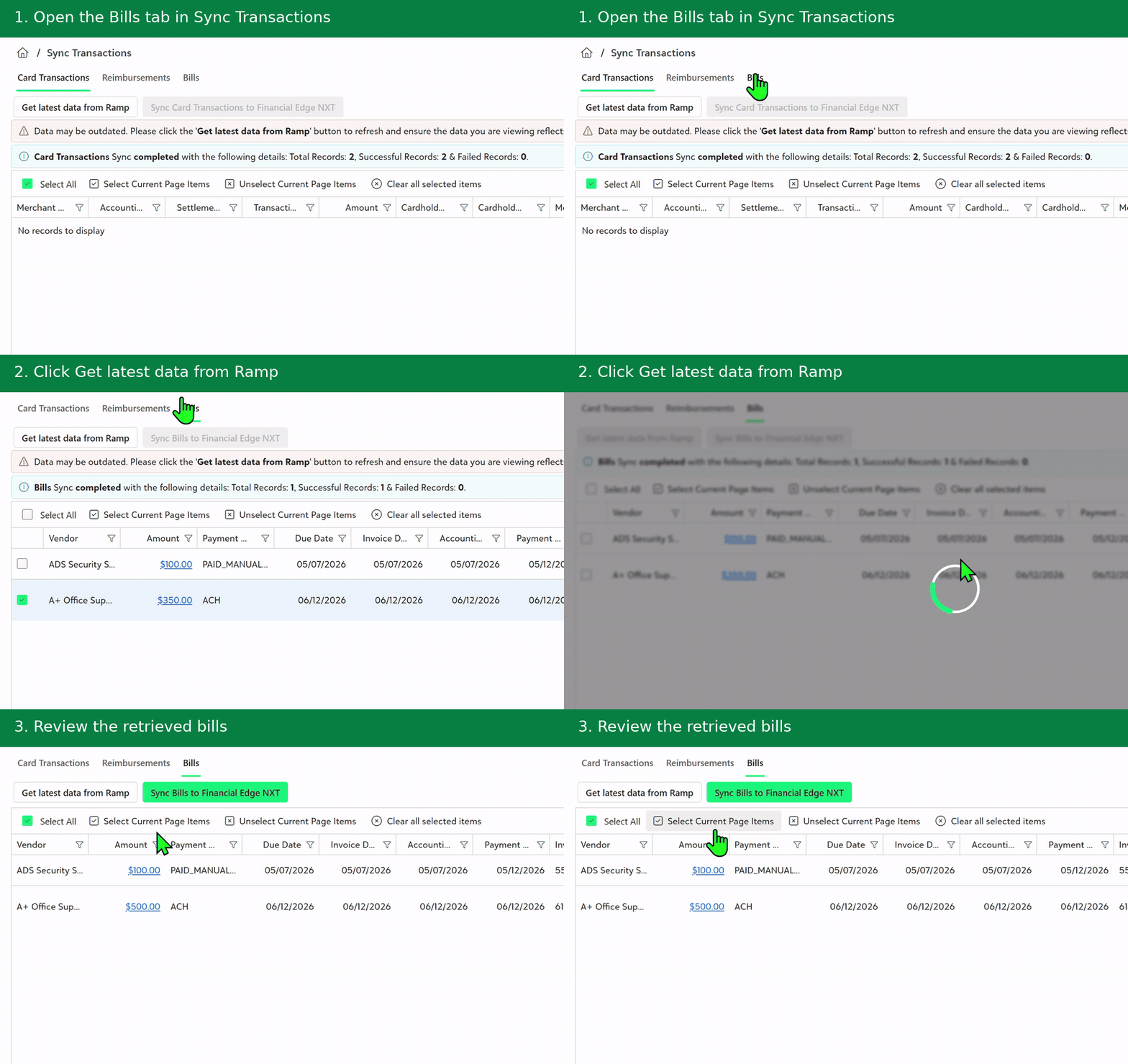
- Open Sync Transactions → Bills and select Get Latest Data from Ramp. RFE retrieves eligible bills from Ramp’s Bill Pay accounting list. It can take few minutes depending on the amount to pull them and show them in grid.
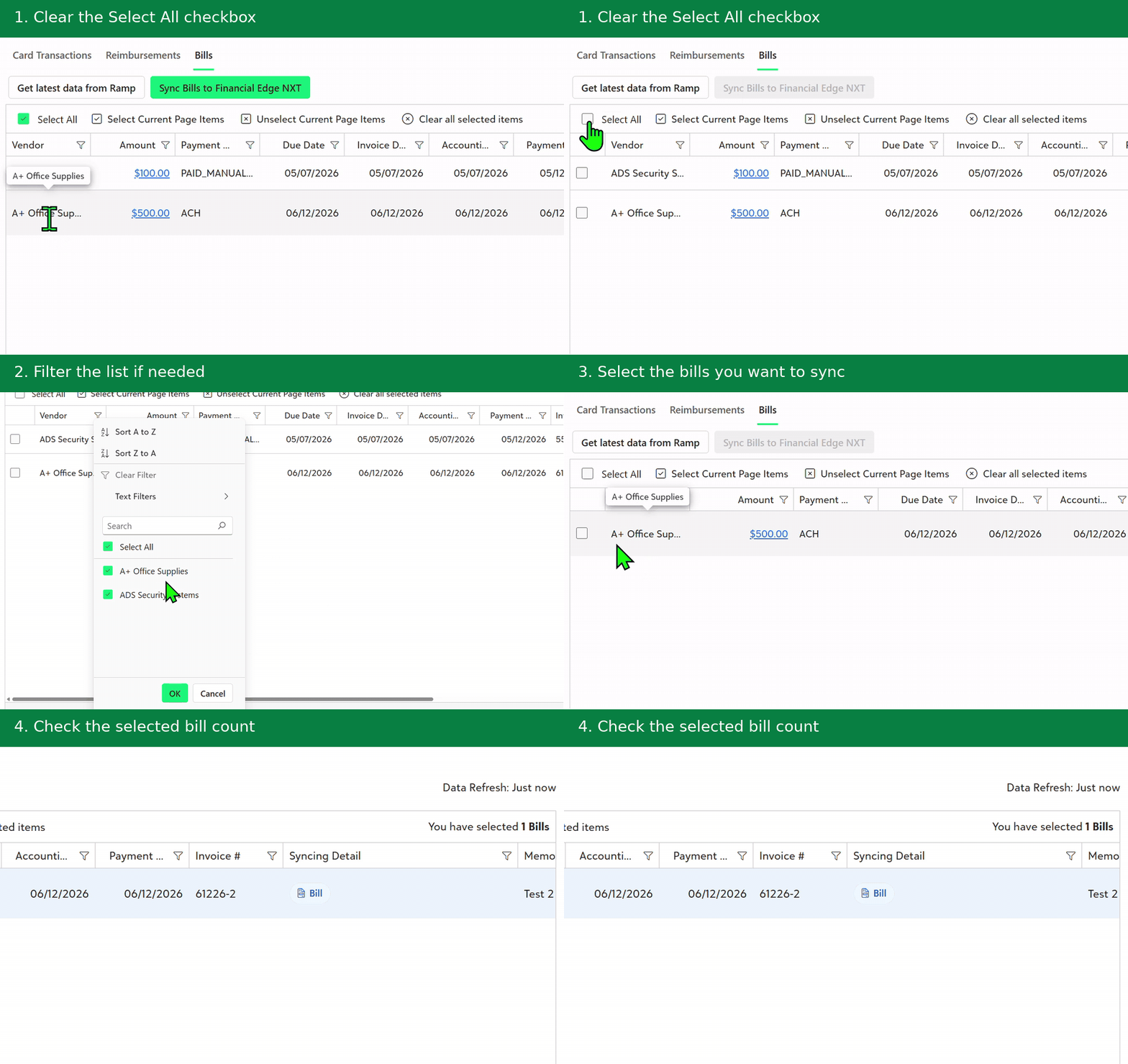
- All bills are selected initially. Clear the select-all checkbox and choose individual bills if you want to sync only some of them.
Syncing Errors
Review errors against each bill and in the summary above the grid. Resolve missing information or dates outside the applicable FENXT open batch before syncing.
Completing the Sync
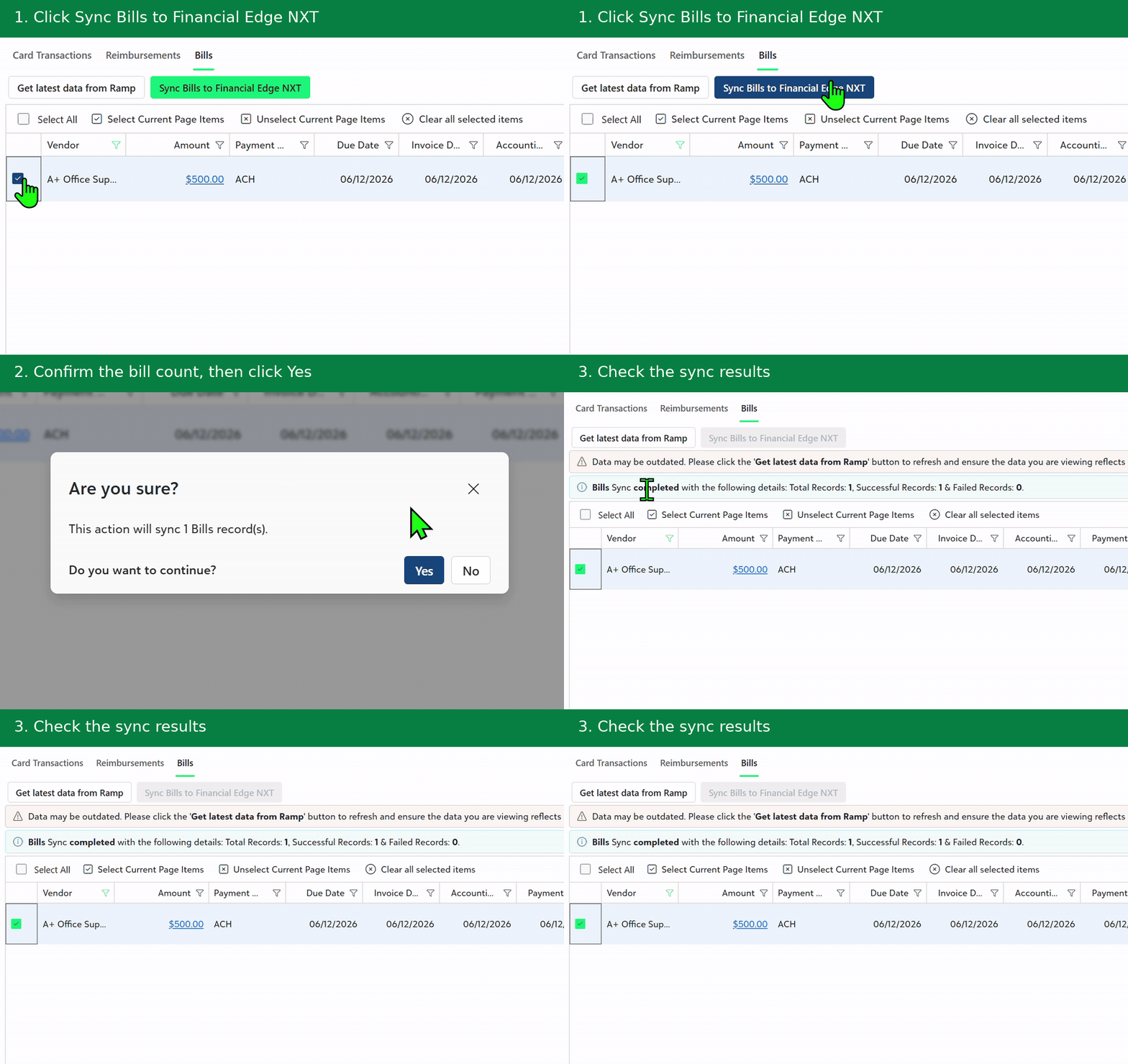
- Select Sync Bills to Financial Edge NXT. Successfully synced bills leave the console list, and their sync status is updated in Ramp.
Payment Related
- Once a bill is paid in Ramp, follow the same sync process to sync its payment to FENXT. RFE uses the payment-initiated date in Ramp as the payment date in FENXT.
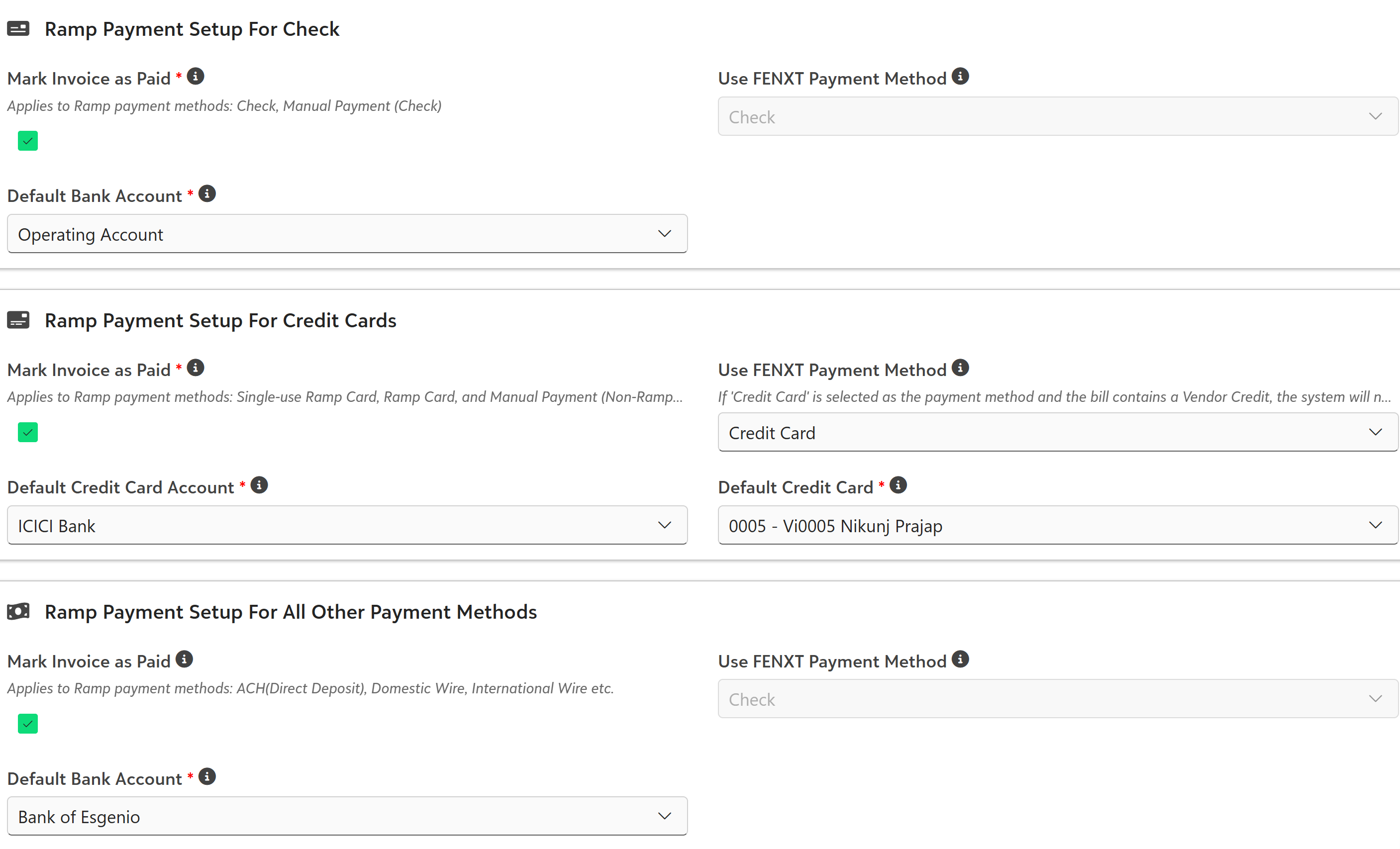
- You can configure the default bank account or credit card account RFE uses when marking invoices as paid in FENXT under the relevant Ramp Payment Setup section.
Settings → Configuration → Bills → Ramp Payment Setup
Key mappings
| FENXT Field | Ramp Source |
| Invoice date | Invoice date |
| Posting date | Posting date; accounting date when posting date is blank |
| Due date | Due date |
Syncing Considerations
- Payments for invoices exported directly through Ramp’s manual export feature are not eligible for syncing through RFE.
Export Settings — Bill Pay
Ramp’s Account ID should contain the full FENXT accounts payable account number. If it is blank, RFE uses its configured default liability account.
Review Ramp’s export availability when a bill is missing from the sync list, then retrieve the latest data again.
NOTE: Bills are available for syncing based on the Export availability setting on this page. Bills and their payments can be synced separately.
If you choose to sync bills “After the bill is created”, please note that once the bill is paid in Ramp, Ramp for FE will not update the status of the bill in Financial Edge NXT.
As a best practice, we recommend using the default setting: “After the bill is fully approved” to ensure accurate status updates between systems.
Related articles
Was this article helpful?
That’s Great!
Thank you for your feedback
Sorry! We couldn't be helpful
Thank you for your feedback
Feedback sent
We appreciate your effort and will try to fix the article