Important: This article only covers syncing bill with a vendor credit. If you’re looking for information about syncing bills, refer to this article: Syncing Bills
Once the transactions have been successfully pulled into the syncing console, the grid within Ramp for FE will be populated.
From here you will be able to see the transactions that have been pulled in:
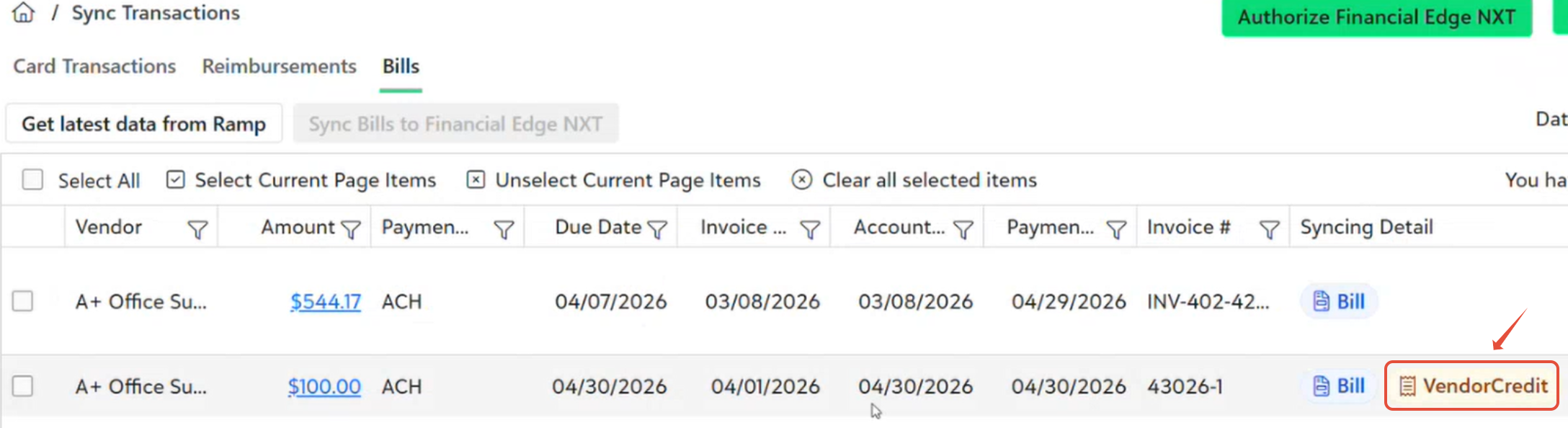
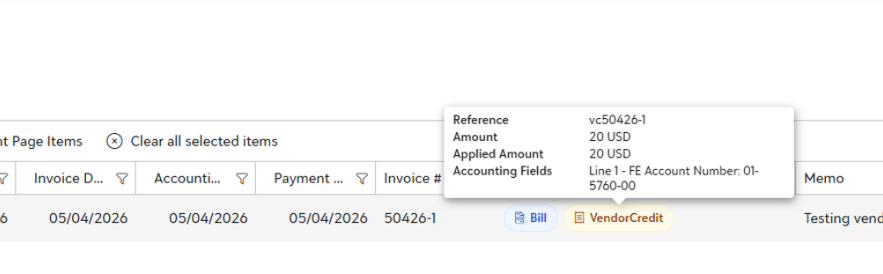
You can click Vendor Credit under Syncing Detail to open a tip with information about your credits.
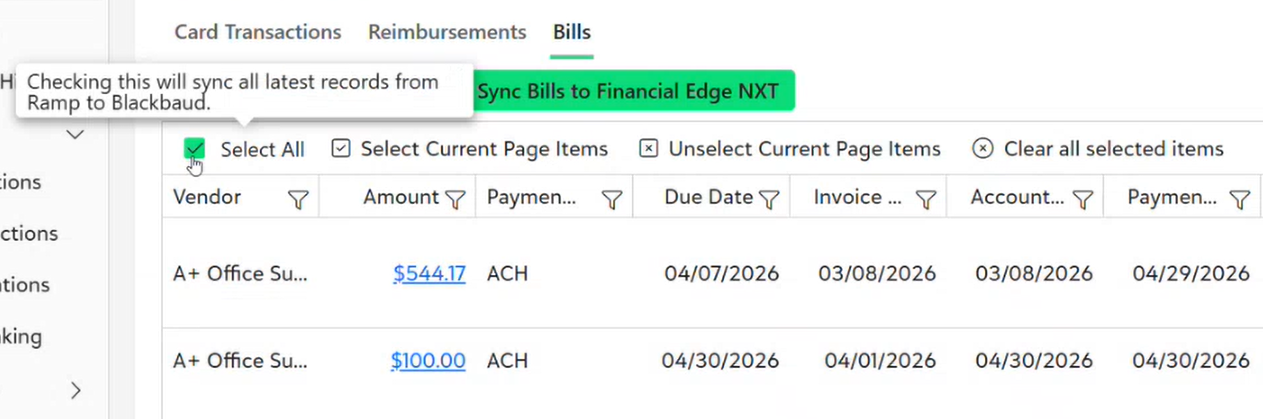
Selecting All or Some Transactions
By default, all transactions will be selected for syncing.
Optionally, you may uncheck this box and only sync a subset of transactions:
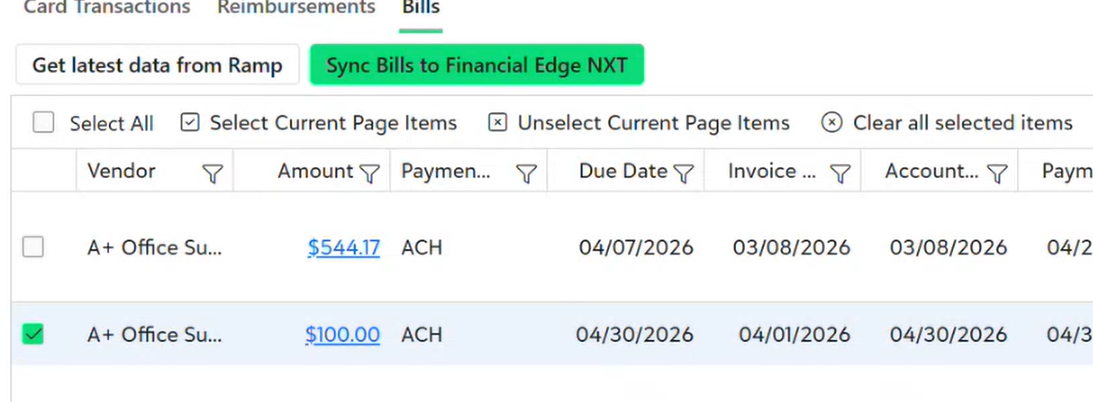
Completing the Sync
Once you are ready to sync the transactions to FENXT, click the Sync Bills to Financial Edge NXT
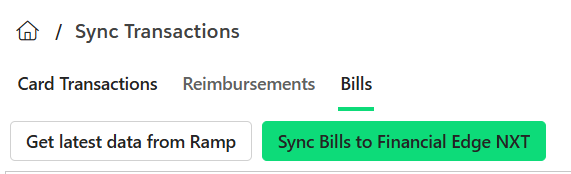
Once the transactions have successfully synced, they will be cleared from the syncing console and will be available to view in FENXT.
Payment Syncing
Once the bill is marked as paid in Ramp, return to Ramp for FE and click Get latest data from Ramp. The paid transaction will then appear in the grid for syncing.
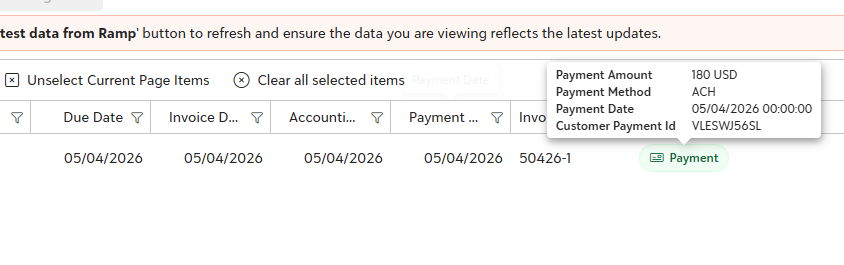
Clicking on the Payment icon with open a tooltip with details about the payment.
Once you're ready to sync the transactions to FENXT, click Sync Bills to Financial Edge NXT to complete the sync.
NOTE: Credit memos count towards a transaction.
You can view the transaction from Transactions History --> Vendor Credit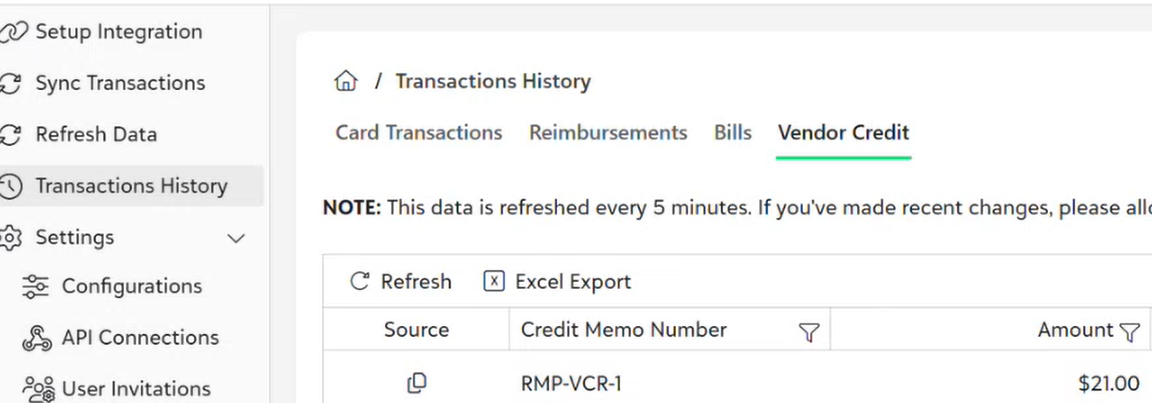
IMPORTANT- If you want to Skip Vendor Credits while syncing Bills Check this box Settings --> Configuration --> Bills --> Skip Vendor Credits while syncing Bills
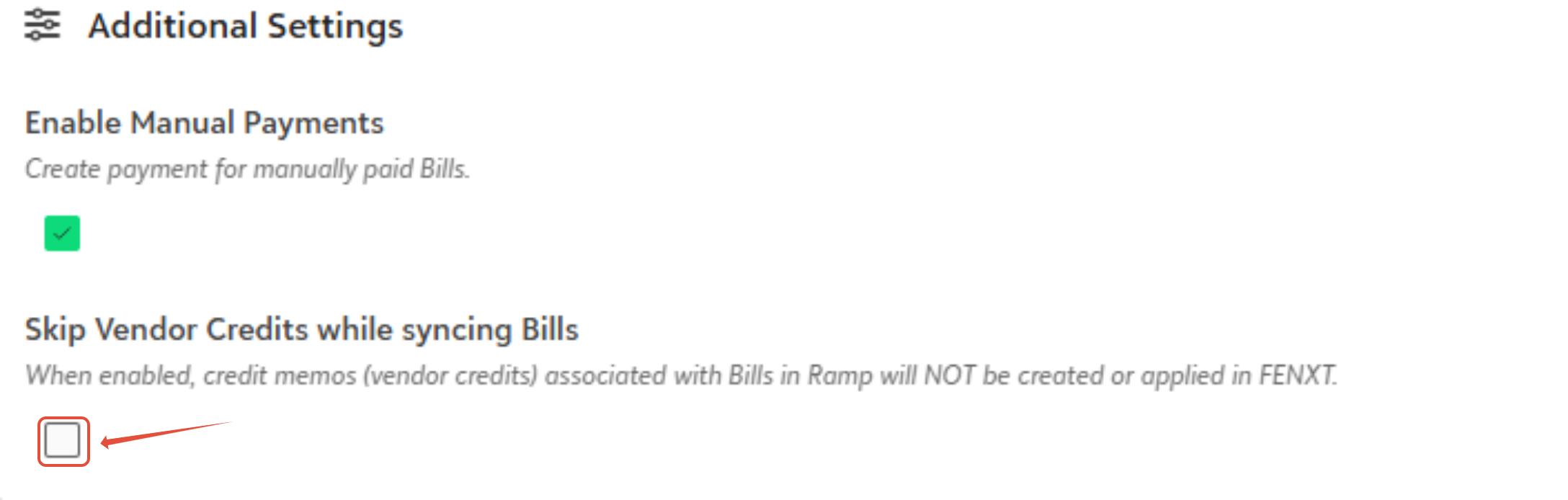
Handling Vendor Refunds or Credit Memos for Credit Card Payments in Financial Edge NXT, Refer to this Blackbaud article-https://kb.blackbaud.com/knowledgebase/articles/Article/206528
Was this article helpful?
That’s Great!
Thank you for your feedback
Sorry! We couldn't be helpful
Thank you for your feedback
Feedback sent
We appreciate your effort and will try to fix the article