Sync Card Transactions and Reimbursements directly from Ramp to Financial Edge NXT. This feature supports these two transaction types only and does not apply to Bills.
Before you begin, confirm your Ramp for FE connections and configurations are set up, and complete any required transaction coding and review.
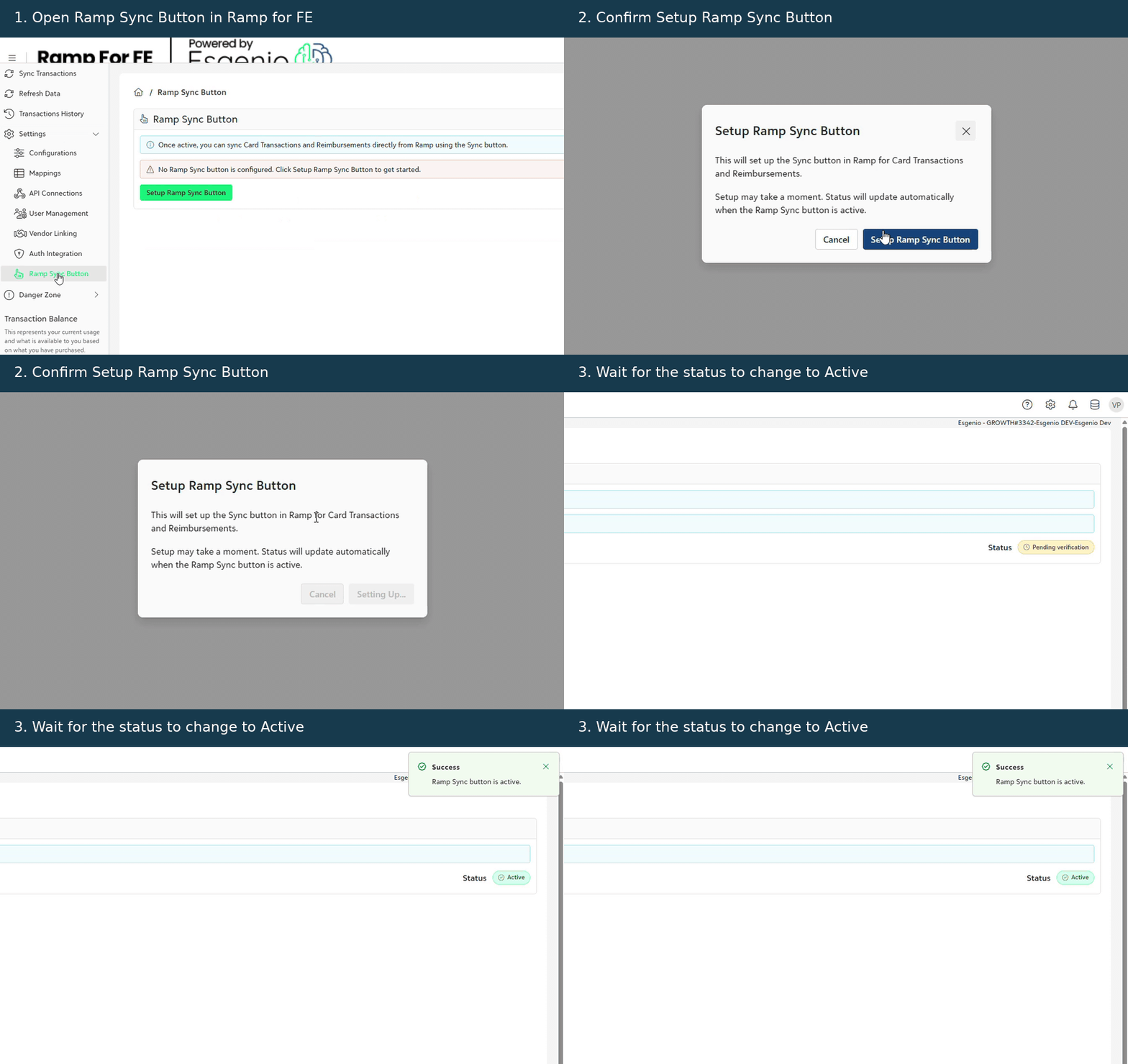
Enable the button
1. In Ramp for FE, select Ramp Sync Button from the left menu.
2. Click Setup Ramp Sync Button, then click it again in the confirmation window.
3. Wait for the status to change to Active. If it is already active, skip this setup.
Sync from Ramp
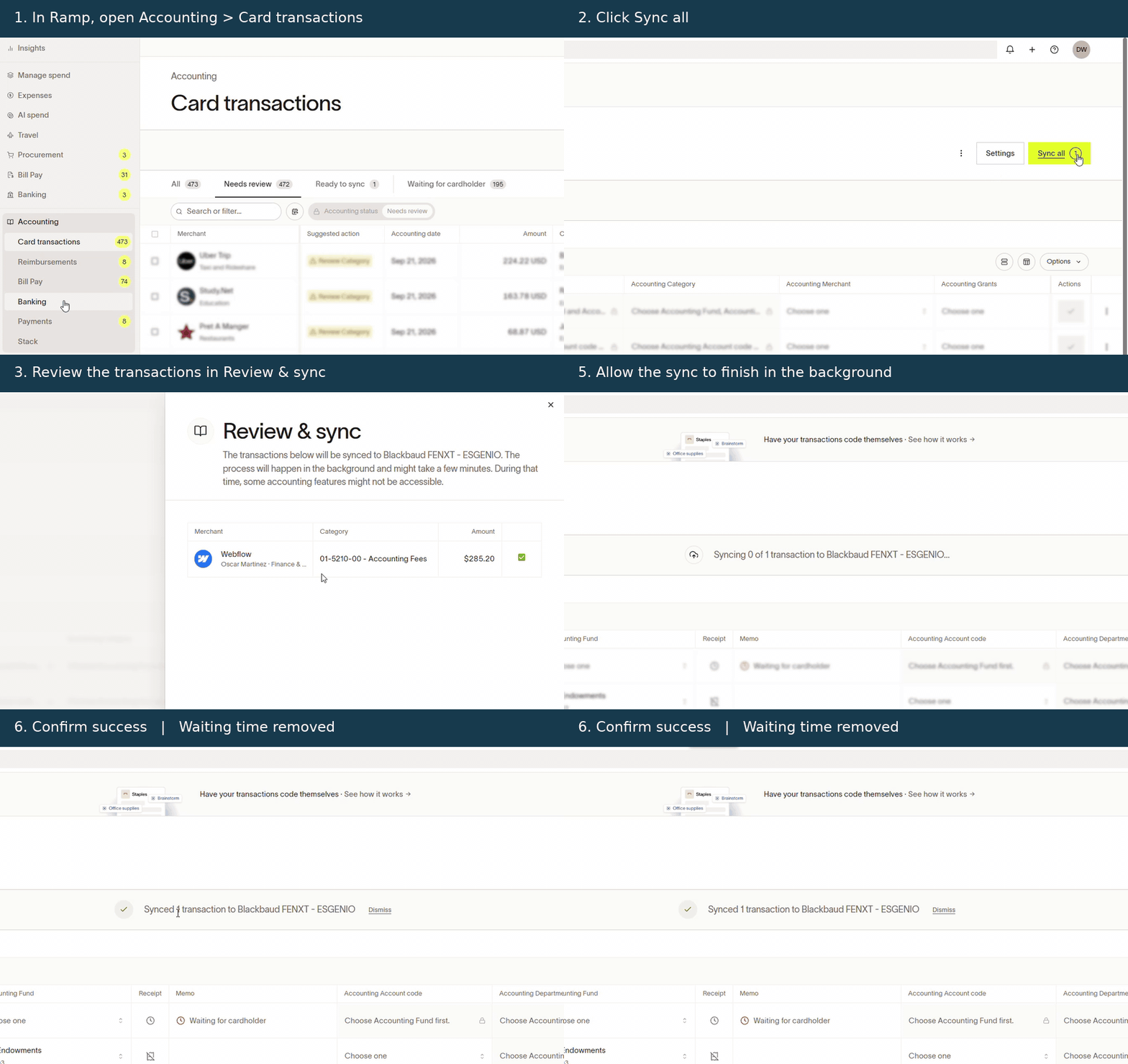
Syncing may take a few minutes. Some accounting features may be temporarily unavailable while it runs.
- In Ramp > Accounting, open Card transactions or Reimbursements.
- Click Sync all.
- Check the destination and transactions in Review & sync, then click Sync.
- Wait for the green Synced confirmation message.
Was this article helpful?
That’s Great!
Thank you for your feedback
Sorry! We couldn't be helpful
Thank you for your feedback
Feedback sent
We appreciate your effort and will try to fix the article