What is Vendor Linking?
Vendor Linking is an automated process that connects vendors in Ramp with Vendors in Blackbaud Financial Edge NXT using the Blackbaud API through Ramp for FE.
This ensures:
- Transactions sync to the correct vendor records in FENXT
- Duplicate vendors are not created
- Vendor details (name, email, phone, address) stay consistent across systems
Vendor Linking happens in two parts:
- Default Vendor Configuration - defines how vendor data should sync.
- Vendor Linking - performs the actual matching and linking of vendors.
Why Vendor Linking is Important
Proper vendor linking prevents
- Duplicate vendors in FENXT
- Transactions posting to the wrong vendor
- Sync failures caused by mismatched or missing vendor data
- Manual cleanup and corrections in Financial Edge
Getting Started
Step 1 - Configure Default Vendor Settings
These settings define how vendor data is synchronized between Ramp and FENXT. They are using during vendor creation and linking.
How to Access:
Go to
Settings --> General Settings --> Default Transaction Configuration --> Vendors
Common Vendor Configuration
These options define how Ramp vendor data maps into FENXT.
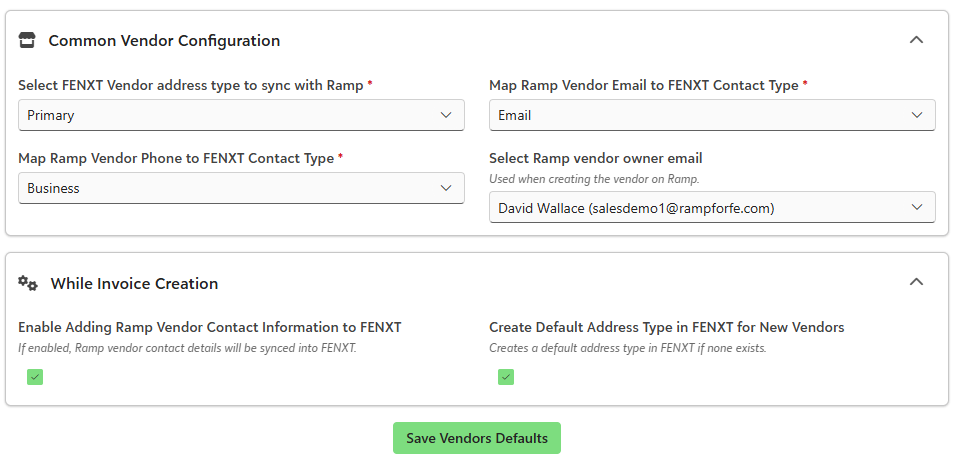
Select Vendor Address Type to Sync with Ramp
- Controls which FENXT address type is used when syncing vendor records
- Recommended: Primary
Map Ramp Vendor Email to FENXT Contact Type
- Determines which FENXT contact field stores the Ramp email
- Recommended: Email
Map Ramp Vendor Phone to FENXT Contact Type
- Determines which FENXT contact field stores the Ramp phone number
- Recommended: Business
Select Ramp Vendor Owner Email
- Determines who owns newly created vendors in Ramp
- Recommended: Ramp service account or internal admin user
Other Options - While Invoice Creation
Enable Adding Ramp Vendor Contact Information to FENXT
- Syncs vendor email and phone from Ramp into FENXT
- Recommended: Enabled
Create Default Address Type in FENXT for New Vendors
- Automatically creates a default address if one does not exist
- Recommended: Enabled
Click 'Save Vendor Defaults' once configuration is complete.
Step 2 - Vendor Linking
This is where the actual vendor matching occurs between Ramp and FENXT.
How to access:
Go to Settings --> Vendor Linking
What Happens Here?
The Vendor Linking module:
- Pulls vendors from FENXT
- Displays existing Ramp vendor matches
- Allows you to manually link mismatched or unlinked vendors
- Uses your default configuration rules to maintain consistency
Vendor Linking Workflow
Step 1 - Fetch Vendor Details from FENXT
Click Fetch Vendor Details from FENXT
This:
- Pulls the latest vendor list from FENXT
- Displays vendors in the grid for review
Step 2 - Review Vendor Matches
Review the list and look for:
- Vendors that are not linked
- Vendors with missing Ramp matches
- Possible duplicates
Each row represents a FENXT vendor, which can be mapped to a Ramp vendor.
Step 3 – Link Vendors
- Select vendors you want to link
- Choose the corresponding Ramp vendor
- Click Link Selected FENXT Vendors to Ramp
This establishes a permanent connection between systems.
How Vendor Linking Works in Practice
Once vendors are linked:
- When a Ramp transaction syncs, it:
- Automatically posts to the correct FENXT vendor
- Uses mapped email, phone, and address fields
- Avoids duplicate vendor creation
- If a vendor does not exist, Ramp for FE:
- Automatically creates the vendor in FENXT
- Applies your default vendor settings
Was this article helpful?
That’s Great!
Thank you for your feedback
Sorry! We couldn't be helpful
Thank you for your feedback
Feedback sent
We appreciate your effort and will try to fix the article