Overview
Custom fields allow you to capture additional accounting details on Ramp transactions and sync them to Blackbaud Financial Edge NXT. Supported Financial Edge NXT custom fields can be loaded into Ramp, mapped to Ramp accounting fields, and used at the distribution level for transactions.
This article explains how to load, create, map, unmap and delete custom fields in Ramp for the Financial Edge NXT integration.
Load custom fields from Financial Edge NXT
Settings → Mappings → Custom Field Mapping
- Go to the custom fields mapping area for the Financial Edge NXT integration.
- Select Reload Custom Fields from FENXT.
- Wait for the reload process to finish.
- It will will load the supported custom fields from Financial Edge NXT.
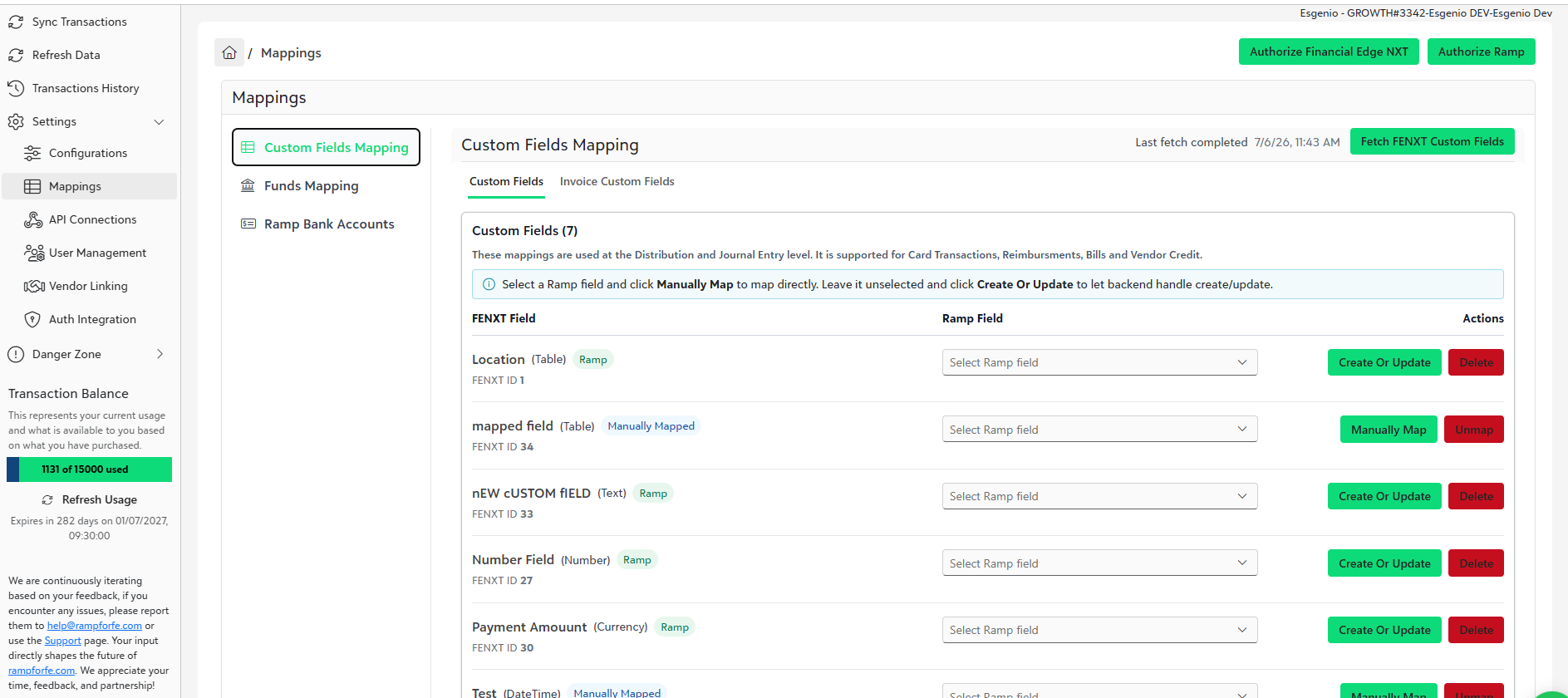
Create and map a custom field in Ramp
Use this option when the Financial Edge NXT custom field does not already have a corresponding field in Ramp.
- Find the Financial Edge NXT custom field in the mapping table.
- Select Create or Update
- We create the corresponding field in Ramp and maps it to the Financial Edge NXT field.
- Once mapped, the field becomes available for use on supported Ramp transactions.
Map to an existing Ramp custom field
Use this option when you already created the field in Ramp and want to connect it to a Financial Edge NXT field.
- Find the Financial Edge NXT custom field in the mapping table.
- Choose the existing Ramp field from the list.
- Select Manually Map.
- The field will be marked as manually mapped.
Unmap a custom field
Use Unmap when you want to disconnect a Ramp field from a Financial Edge NXT custom field without deleting the Ramp field.
- Find the mapped custom field.
- Select Unmap.
- The field will no longer sync between Ramp and Financial Edge NXT.
Unmapping does not delete the field from Ramp.
Delete a Ramp-created custom field
If you created the custom field, you may see a Delete option. Deleting removes the custom field from Ramp.
- Find the custom field you created.
- Select Delete.
- Confirm the deletion.
Where custom fields appear in Financial Edge NXT
- Custom fields sync to the distribution level in Financial Edge NXT.
- For invoices and other supported payable transactions, custom fields appear in the distribution section or header level based on the sub ledger type.
- For card transactions that sync to General Ledger, custom fields appear on the line item in the General Ledger batch.
Supported Custom Fields in FENXT
Distribution Level
- Subledger: General Ledger
- Display on Record: Transaction
Invoice Level
- Subledger: Invoice/Credit memo
- Display on Record: Payables
Was this article helpful?
That’s Great!
Thank you for your feedback
Sorry! We couldn't be helpful
Thank you for your feedback
Feedback sent
We appreciate your effort and will try to fix the article